


3x faster Whisper with ConvRot Int8 - Special Speech to Text Premium App

Whisper-WebUI Premium Transcribes a 10-Minute Video in 4 Seconds: Full Windows Guide
Whisper-WebUI Premium : https://www.patreon.com/posts/145395299
Full tutorial link > https://www.youtube.com/watch?v=yzNhkC3aQuA
Download Installers and App
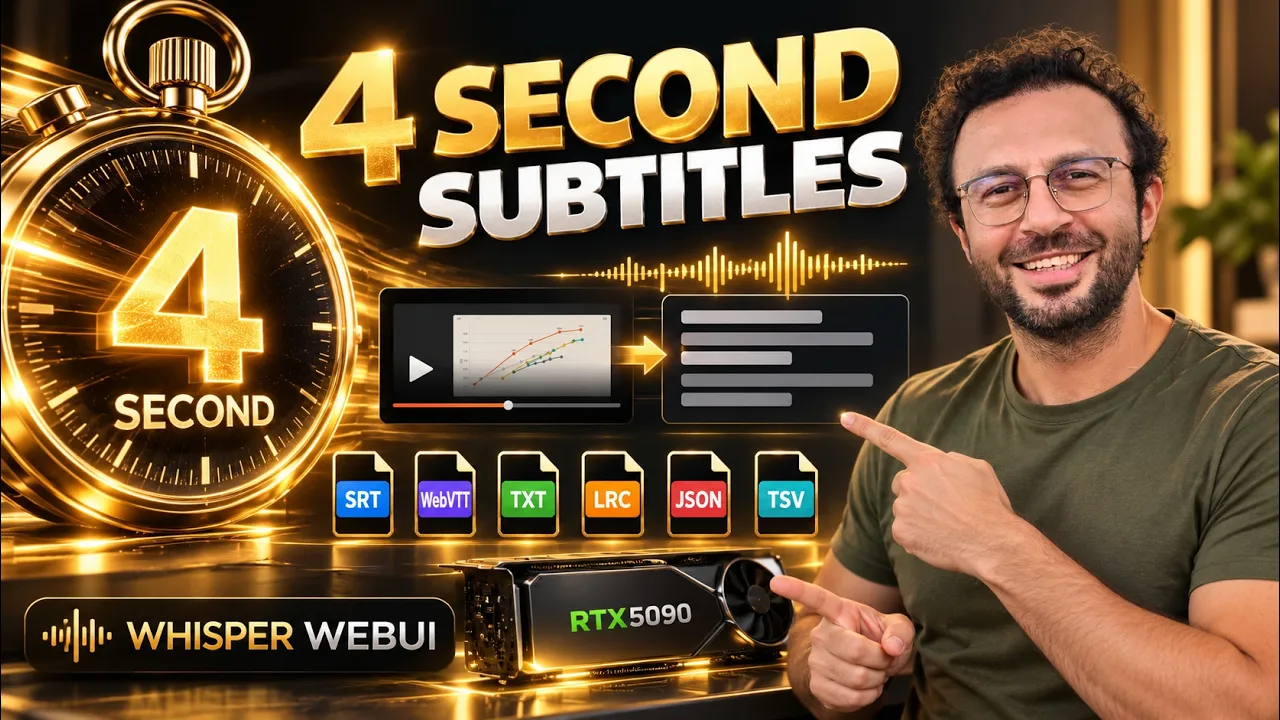
Whisper-WebUI Premium turns any video or audio into accurate subtitles and transcripts on your own PC. On an RTX 5090, our own INT8 ConvRot engine transcribed a 1 hour 29 minute lecture in 32 seconds. Every setting comes ready with researched best-quality presets. Below you will see every feature with real screenshots from the app.
Why Whisper-WebUI Premium
- Our own INT8 ConvRot engines: Whisper large-v3 runs 3.4x faster and NVIDIA Canary-Qwen 2.5B runs 8.9x faster than the standard models, on the same video and the same GPU.
- Same accuracy as the original models: measured through the app on 14 public English test sets, 48 hours of audio.
- Real speed: a 10 minute video in 9 seconds, a 1.5 hour lecture in 32 seconds.
- 3 engines in one app: Whisper, Insanely Fast Whisper and NVIDIA Canary-Qwen 2.5B, with 21 Whisper models and 100 languages.
- Ready presets: researched best-quality settings for every engine, plus your own saved presets.
- 6 output formats in one run: SRT, WebVTT, TXT, LRC, JSON and TSV, with a one-click ZIP download.
- Everything in one place: batch folders, YouTube links and whole channels, live microphone, speaker labels, background music remover, voice detection filter and subtitle translation to 200 languages.
- 1-click installers: Windows, RunPod, SimplePod, Massed Compute and Linux, with PyTorch 2.13, CUDA 13 and precompiled Flash Attention, xFormers, SageAttention and Triton.
- Automatic model downloads with live progress, frequent updates and support.
Here is the app right after a job. A 10 minute 54 second video was transcribed in 9 seconds, 70 times faster than real time.

1: pick a ready preset. 2: download all subtitle files in one ZIP. 3: preview your video instantly. 4: watch the transcription live. 5: choose from 3 engines and our INT8 ConvRot models.
Speed: Our INT8 ConvRot Engines
We built INT8 ConvRot versions of Whisper large-v3, Whisper large-v1 and NVIDIA Canary-Qwen 2.5B, and our own GPU engine to run them. The model files are smaller too: 1.6 GB instead of 3.1 GB for Whisper, and 2.9 GB instead of 5.1 GB for Canary-Qwen. Here is the same video on the same RTX 5090 with the same settings:

Long files are just as fast. Our 1 hour 29 minute lecture took 1 minute 15 seconds with our INT8 Whisper large-v3 (71x real time) and only 32 seconds with Canary-Qwen (168x real time). This is the Canary-Qwen run in CMD:

After each job the model waits in RAM and your VRAM is free. The next job moves it back to the GPU in under a second, so it starts right away.
Same Accuracy as the Original Models
Speed only matters with accuracy. We measured every model through the app on 14 public English test sets with human transcripts: 2,700 short clips and 120 long recordings, 48 hours in total.

On the Open ASR Leaderboard's 8 English test sets, our INT8 models reach the published accuracy of the full-precision originals. Canary-Qwen 2.5B scored 5.62% word error rate against the published 5.63%, and Whisper large-v3 scored 7.22% against 7.44%.
1-Click Installation
What You Download
You get one small zip file with the installers for every platform.

Extract it into any folder. On Windows, double-click Windows_Install_Update.bat, then start the app with Windows_Start_app.bat. Run the same installer again at any time to update.
Latest PyTorch, CUDA 13 and Precompiled Libraries
The installer makes its own Python 3.12 virtual environment, so your other apps stay untouched. It installs PyTorch 2.13 with CUDA 13 and our precompiled Flash Attention, xFormers, SageAttention and Triton for Windows. You never compile anything.

Every package version is tested with the app. This is the end of a real fresh install on our PC:

At the end, the installer downloads the speaker label models from our mirror. You do not need a Hugging Face token or any model approval.
Start the App
Double-click Windows_Start_app.bat. CMD shows every startup step with its time.

On our RTX 5090 the app was ready in 6.5 seconds. Open the local address in your browser and start transcribing.
Cloud GPUs: RunPod, SimplePod and Massed Compute
You can also run the app on a cloud GPU. The cloud installers set up Python 3.12, FFmpeg n9.0 and everything else with one command, and a Gradio share link lets you use the app from any device.
- SimplePod: register here and use this template.
- RunPod: register here and use this template.
- Massed Compute: register here and use our coupon SECourses.
The step-by-step commands are in the instruction files inside the zip.
Requirements
On Windows you need Python 3.12, Git, FFmpeg, CUDA 13, cuDNN 9.17 and Visual Studio with C++ tools. This tutorial shows every step, and the same setup runs all our AI apps. The app runs on NVIDIA GPUs from the GTX 16 and RTX 20 series up to the RTX 50 series. Our INT8 ConvRot engines use the RTX 30 series and newer, and other GPUs switch to the standard models automatically.
Config Presets
Every engine comes with a locked best-quality preset. We researched each value on real test sets, so you get top results without changing a single setting.
Where to find it: Config Presets sits at the top of the page and stays there on every tab.

Open the Select Preset list to see every preset:

Change anything you like, type a name and click Save to keep your own preset. The app remembers your last preset and loads it at every start.
Three Engines and 21 Whisper Models
Choose the engine in Base Model: Whisper (faster-whisper), Insanely Fast Whisper (Transformers) or NVIDIA Canary-Qwen 2.5B. Each engine loads its best settings when you select it.
Where to find it: open the File tab and scroll to Base Model. The Model list is right under it, and the Youtube and Mic tabs have the same controls.

Open the Model list to see every model:

You get every Whisper model from tiny to large-v3, plus turbo, distil and our two INT8 ConvRot models. A model downloads automatically the first time you use it.
NVIDIA Canary-Qwen 2.5B
Canary-Qwen 2.5B is one of the most accurate open English speech models on the Open ASR Leaderboard (September 2026). Our INT8 ConvRot build runs it with Triton kernels and CUDA graphs.
Where to find it: pick Canary Qwen Best Quality in Select Preset, or choose Canary-Qwen (NVIDIA NeMo) in Base Model.

The Canary settings then load automatically:

The app reads your GPU memory at startup and picks the batch size for you: batch 2 on 6 GB, 4 on 8 GB, 8 on 10 to 12 GB and 16 on 16 GB and more. Here it chose batch 16 on the 32 GB RTX 5090 and finished the 1 hour 29 minute lecture in 36 seconds.
Automatic Model Downloads
You never download models by hand. The first time you use a model, the app downloads it and shows the progress in Live Transcription and in CMD.

All models and caches stay inside the app's own models folder, so the rest of your PC stays clean.
100 Languages and Translation to English
Whisper understands 100 languages, and Automatic Detection finds the language for you.
Where to find it: in the File tab, the Language list and the Translate to English checkbox sit next to the Model list.

Open the Language list to see every language:

Turn on Translate to English and Whisper writes English subtitles directly from speech in any language.
Output Formats and Run Controls
All the main controls sit in one clear panel under the model settings.
Where to find it: in the File tab, right under the Model row. Tick your formats, then click GENERATE SUBTITLE FILE.

Here are the formats and run controls up close:

1: tick as many formats as you like. 2 and 3: start and stop jobs. 4: previous-text context is tuned for long files automatically. 5: open the extra sections for advanced settings, the music remover, the voice filter and speaker labels. 6: every job ends with a clear summary. One run writes all six files, named after your input file:

The best-quality presets use word timestamps. You get clean sentence-level subtitles, or word-level highlighted SRT and WebVTT when you want them.
Advanced Parameters
Where to find it: open the File tab, scroll down and click Advanced Parameters. The Open / close all sections button at the top opens it too, together with every other section.

The panel opens with every decoding setting, each with a short explanation under it:

Use Hotwords or the Initial Prompt for names and terms. Turn on Use Batched Inference for extra speed on long files. Offload Models to RAM When Idle keeps your models ready while your VRAM stays free.
Music Remover, Voice Filter and Speaker Labels
Three built-in filters prepare your audio before transcription.
Where to find it: in the File tab, scroll down. The three sections sit right under Advanced Parameters; click a title to open it.

Here are the three sections opened:

The Background Music Remover separates speech from music with UVR MDX-Net. The Silero voice filter skips silence. Diarization adds speaker labels such as SPEAKER_00 and SPEAKER_01 without a Hugging Face token. In our test it labelled every turn of a two-person interview correctly.
Batch Processing Whole Folders
Transcribe a whole folder in one click, subfolders included.
Where to find it: in the File tab, on the right side, next to the upload box.

Tick Enable Batch Processing and set your folders:

Here 3 videos in 3 subfolders, 18 minutes in total, were finished in 26 seconds. The output folder mirrors your folder tree, finished files are skipped on the next run, and one broken file never stops the batch.
YouTube Videos and Whole Channels
Paste a YouTube link and the app loads the thumbnail, title and description.
Where to find it: click the Youtube tab. The Youtube Link box is at the top.

The link loads the video details right away:

Click Generate and the app downloads the audio and transcribes it. Our 12 minute video went from link to finished subtitles in about 15 seconds. Turn on Mass Transcribe Latest Channel Videos to process the latest videos of a whole channel, one after another.
Live Microphone
Speak and watch the text appear. The Mic tab has two modes.
Where to find it: click the Mic tab. Live Mic is on the left and Record Then Generate on the right.

Press Live Mic Record and start speaking:

Live Mic shows a preview while you speak and updates it every 2 seconds. When you stop, the whole recording is transcribed with the full model and saved as subtitle files. Record Then Generate lets you record first and create the subtitles after.
Subtitle Translation to 200 Languages
Translate your subtitle files with Meta NLLB, right inside the app.
Where to find it: click the T2T Translation tab, drop your subtitle files, then open the NLLB tab. DeepL API is right next to it.

Choose the languages and click TRANSLATE SUBTITLE FILE:

Choose the source and target language, click Translate and download the new file. Timestamps and speaker labels stay in place. A DeepL API tab is included too, for your own DeepL key.
Background Music Separation
The BGM Separation tab splits any audio file into music and voice.
Where to find it: click the BGM Separation tab, drop your audio files and click SEPARATE BACKGROUND MUSIC.

After the separation you get two tracks:

You get a music-only track and a clean voice track, both saved in your outputs folder.
Light and Dark Theme
The app starts in dark mode, and one click switches to the light theme.

The Open / close all sections button opens or closes every panel at once.
Latest Updates
Whisper-WebUI Premium gets frequent updates. Versions 12.4 to 13 came out between 27 and 29 September 2026:
- New INT8 ConvRot models for Whisper large-v3, large-v1 and Canary-Qwen 2.5B, downloaded automatically.
- Lower word error rate in English: the INT8 models now match the published accuracy of the originals.
- Canary-Qwen transcribes recordings up to 40 seconds in one piece and cuts longer ones at pauses.
- Canary batch size is picked from your GPU memory, with automatic recovery when VRAM runs short.
- Models wait in RAM between jobs, so the next job starts in under a second.
- Faster start, with every startup step shown in CMD.
- Batch processing keeps your subfolders, skips finished files and lists any failed files at the end.
- All GPU jobs wait in one queue and run one after another, so two jobs never clash.
- A redesigned interface with light and dark themes.
Get Whisper-WebUI Premium
Download the latest zip file attached to this post, extract it and run the installer for your platform. To update, get the newest zip, overwrite the old files and run Windows_Install_Update.bat again.
- Full tutorial video: watch it on YouTube.
- Requirements tutorial: Python, Git, FFmpeg, CUDA and C++ tools step by step.
- Support: our Discord channel.